¶ Available tiles
Dashboards Classic
Tiles you can add to your dashboards are described below.
¶ Editing tips
To make multiple similar tiles, start with one good tile, clone it, and then edit the cloned tiles.
¶ Clone a tile to the current dashboard
- Go to Dashboards.
- Select the name of a dashboard to display that dashboard.
- Select Edit in the upper-right corner of the dashboard. The dashboard opens in edit mode.
- If you don't see an Edit option, you don't have permission to edit that dashboard.
- Select the tile that you want to clone (add a copy of the tile to the current dashboard) and then select Clone.
- To clone multiple tiles to the current dashboard, drag a selection rectangle around the x tiles you want to clone and then select Clone x tiles.
- Edit the cloned tiles as needed.
¶ Clone a tile to another dashboard
-
Go to Dashboards.
-
Select the name of a dashboard to display that dashboard.
-
Select Edit in the upper-right corner of the dashboard. The dashboard opens in edit mode.
-
If you don't see an Edit option, you don't have permission to edit that dashboard.
-
Select the tile you want to clone to another dashboard and then select Clone to.
-
To clone multiple tiles to another dashboard, drag a selection rectangle around the x tiles you want to clone and then select Clone x to.
-
In the Where do you want to pin to? pop-up window, select an existing dashboard or Create new dashboard.
-
Select Pin to add the selected tiles to the dashboard.
-
Edit the cloned tiles as needed.
-
To make multiple similar dashboards, each with the same tiles, start with one good dashboard, clone it, and then edit the cloned dashboards/tiles.
¶ Clone an existing dashboard
- Go to Dashboards.
- In the table of dashboards, select More (…) > Clone for the dashboard you want to copy.
- The copy opens in edit mode.
- The original dashboard is unaffected.
¶ Visualizations
Use visualization tiles to create visual representations of Data Explorer queries that you can pin to your dashboards.
¶ Visualization types
DESK offers the following visualization types:
¶ Interactivity
Interactivity of visualization tiles varies according to the type of visualization, but they generally share common capabilities.
- Hover over an element (such as a line or a slice of pie) to see details in a tooltip.
- Select (click) an element and then select a button in the tooltip to drill down for details. For example, in a visualization showing a line for each host, select an interesting point on a line and then select the View host button to drill down to the selected host page.
- The legend is active: select a legend entry to show or hide the corresponding element on the visualization.
- All tiles have a tile menu in the upper-right corner:
- Configure tile in Data Explorer opens the tile in Data Explorer, where you can configure the query and visualization.
- Edit tile (if you have edit rights) opens the dashboard in edit mode with the current tile selected.
¶ Configuration
¶ To configure a visualization tile from the dashboard editor
- Display your dashboard and select Edit.
- Drag a visualization tile from the Edit dashboard pane, Tiles tab, to your dashboard.
- Select Configure tile to open your tile in Data Explorer.
- Configure the query for the tile. You don't have to create the final version all at once; you can build your query iteratively.
- Select Run query after you make a query change to see the results of the change.
- optional Select a different visualization type and see what works best for your query.
- The selection of visual settings available depends on the query and visualization type.
- After you have defined the query:
- To save your changes to the tile and dashboard you started from, select Save changes to dashboard.
- To save your changes to a different tile, even a different dashboard, select Pin to dashboard and choose the destination dashboard and tile title.
- Select Open dashboard.
- optional Change the tile title.
- optional Select a custom timeframe.
- optional Select a custom management zone.
- optional Select an environment.
¶ To configure a visualization tile from the 'Data Explorer'
Go to Data Explorer.
Configure the query for the tile. You don't have to create the final version all at once; you can build your query iteratively.
- Select Run query after you make a query change to see the results of the change.
- Select different visualization types to see what works best for your query.
- The selection of visual settings available depends on the query and visualization type. For details:
- Graph
- Stacked column
- Stacked area
- Pie
- Single value
- Table
- Top list
- Heatmap
- Honeycomb
- Some visualizations (for example, heatmaps) can display only one metric. To display a different metric in the visualization, select the letter next to the metric you want to visualize. In this example, we would change the selection from A (CPU usage %) to B (Memory used %).
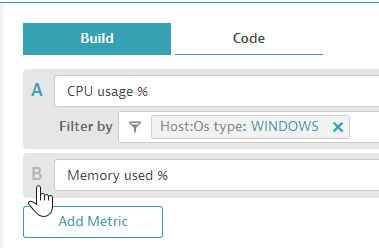
Other visualizations (for example, tables) can display more than one metric. To change the selection of metrics to visualize, select the letters next to the metric names. In the above example, we would change the selection from A (CPU usage % only) to both A and B (CPU usage % and Memory used %).
- When you are satisfied with the results of your query, select Pin to dashboard and choose the destination dashboard and tile title.
- Select Open dashboard to see the tile on the dashboard.
- optional Change the tile title.
- optional Select a custom timeframe.
- optional Select a custom management zone.
- optional Select an environment.
¶ Context
Use the context tiles (Header, Markdown, and Image) to explain your dashboard contents and add graphics such as company logos. This is particularly important if you're making dashboards to share with others.
¶ Header
Use a header tile to put a bold label over another tile.
¶ Markdown
Use one or more markdown tiles to customize and describe your dashboard: what it does, how to use it, and so on.
Limitations: 1,000 characters per markdown tile.
¶ Markdown syntax
¶ Headings
Markdown heading levels # - ###### are supported.
¶ Horizontal lines
Use *** or ___ or --- alone on one line to add a horizontal line separating sections of your tile.
¶ Line breaks
Leave two spaces at the end of a line to force a line break.
¶ Emphasis
Use text or text to display bold text.
¶ Lists
You can create numbered (1.) or bulleted (*) markdown lists, or a mix of the two, with nesting.
¶ Links
If you have favorite DESK pages and websites, you can add links to all of them from your dashboards.
A link consists of two parts:
- The link label in square brackets: [ and ]. This is free-form text between two square brackets, such as [DESK].
- The link target in parentheses: ( and ). There are two ways to define a target:
- An absolute URL. For example, to link to:
https://www.example.com/
put the whole URL in parentheses
(https://www.example.com/)
to get a link definition like:
[Example](https://www.example.com/)
- An anchor to a DESK page (including other dashboards).
To get that anchor, navigate to the target page in DESK and copy everything on the browser address line that follows the domain and slash.
If the full URL of the target page is:
https://myenvironment.live.desk.com/ui/deploymentstatus/oneagents?gtf=-2h&gf=all
the anchor text is:
ui/deploymentstatus/oneagents?gtf=-2h&gf=all
and the full link specification is something like:
[My link to deployment status](ui/deploymentstatus/oneagents?gtf=-2h&gf=all)
Similarly, if you added this example to a markdown tile on one of your dashboards, the link would open the DESK Hosts table:
[Hosts](#newhosts;gtf=-2h;gf=all)
¶ Image
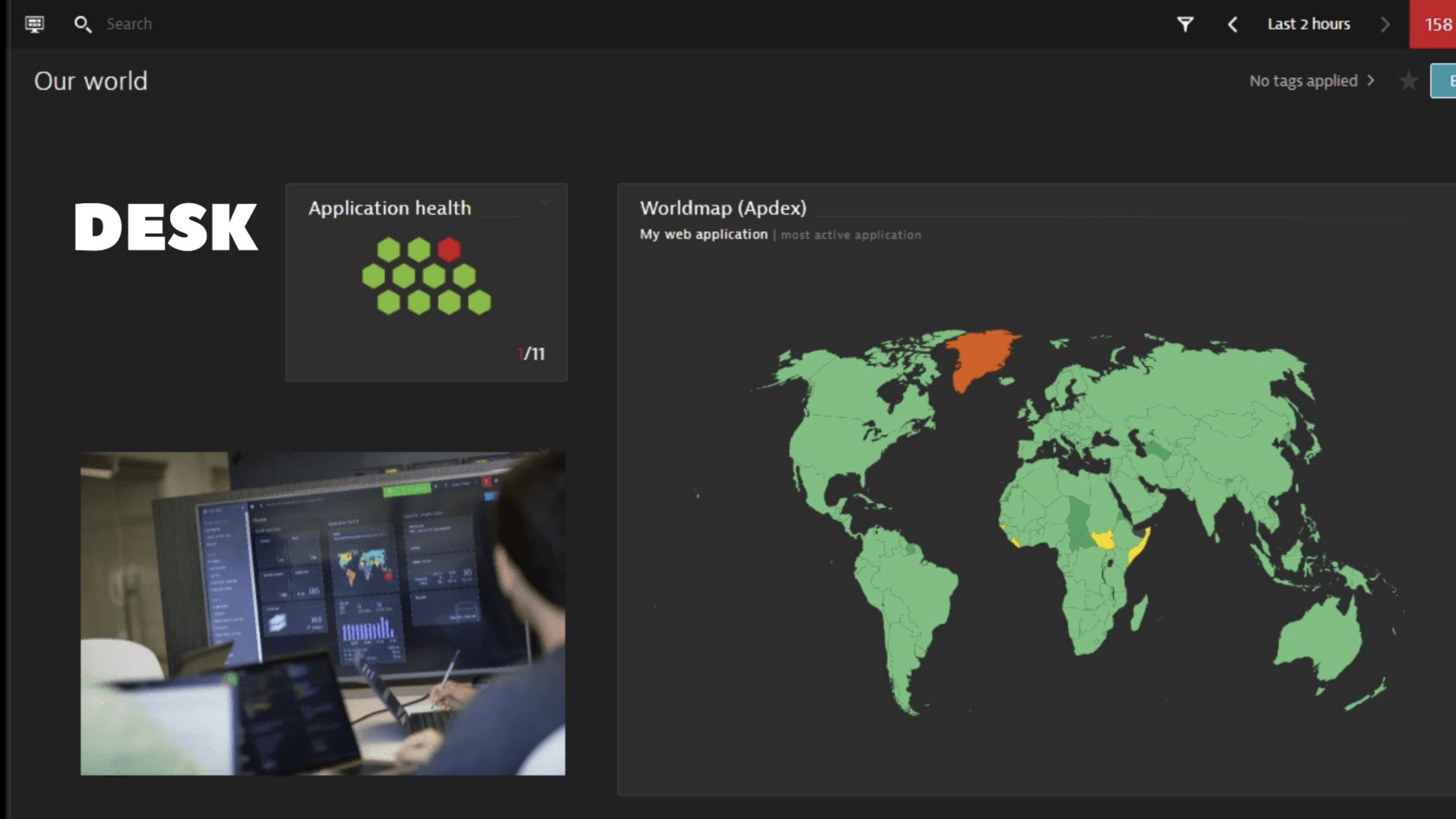
Add images to your dashboards to improve their appearance and customize them for presentations.
Supported image file types: JPG/JPEG, GIF, PNG, WEBP, TIFF, BMP, SVG
You can upload an image or point to it via URL.
Unlike other tile types, an image tile is not automatically refreshed. You need to refresh a dashboard manually to update the image tiles on that dashboard.
¶ Upload an image
To upload an image and display it on your dashboard
- Go to Dashboards.
- Select the name of a dashboard to display that dashboard.
- Select Edit in the upper-right corner of the dashboard. The dashboard opens in edit mode.
- If you don't see an Edit option, you don't have permission to edit that dashboard.
- Drag an Image tile into position.
- On the Image panel, select the Upload an image tab.
- Select Upload image.
- Browse for and select the image file you want to display in the tile.
- Size and position the tile as needed.
¶ Point to image via URL
¶ Setting up Images in Dashboard via URL
To point to an image via URL and display it on your dashboard, you first need to add the URL to the allowlist, and then you can refer to that URL from an image tile.
¶ Add the URL to the allowlist
-
Go to Settings and select Dashboards > Allowed URL pattern rules.
-
Select Add item.
-
Set Rule, which specifies how to process this allowlist entry:
- Starts with — allow any image whose URL starts with the contents of Pattern.
- Exact — allow the specific image whose URL matches the contents of Pattern exactly.
-
Set Pattern:
-
To specify a URL start, enter enough of the URL to make sure any matching image URLs will be suitable for your dashboards.
Example: enter
https://example.com/images/to allow any image whose URL starts withhttps://example.com/images/, such as:https://example.com/images/image-x.jpghttps://example.com/images/my-picture.svg
-
To specify an exact URL, enter the entire URL of the image you want to allow.
Example: enter
https://example.com/images/my-image-file-name.jpgto allow only that image.
-
-
Select Save changes to add the specified rule to the allowlist.
¶ Add the image tile
-
Go to Dashboards.
-
Select the name of a dashboard to display that dashboard.
-
Select Edit in the upper-right corner of the dashboard. The dashboard opens in edit mode.
If you don't see an Edit option, you don't have permission to edit that dashboard.
-
Drag an Image tile into position.
-
On the Image panel, select the Add image URL tab.
-
Enter the URL of the image file you want to display in the tile. It needs to match one of the rules on the allowlist.
¶ Example dashboard with images:
- Size and position the tile as needed.
¶ Infrastructure
¶ Host health
Displays the number of hosts (operating system instances, whether physical and virtual) in your environment compared to the number of hosts in your environment that are currently affected by problems. Each host instance equates to a DESK OneAgent installed in your environment.
¶ Drilldowns
¶ Health tile drilldowns
-
From a health tile (such as Host health, Service health, and Application health), where you see green and red elements (such as hosts, services, or applications), hover over any problematic (red) element to see the identity of the element.
-
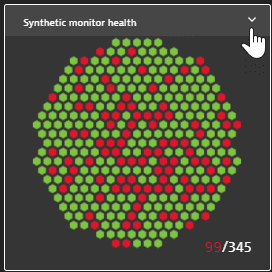
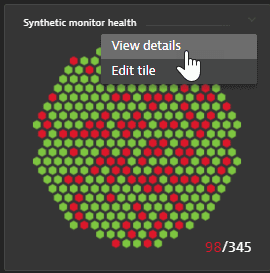
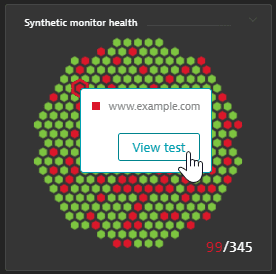
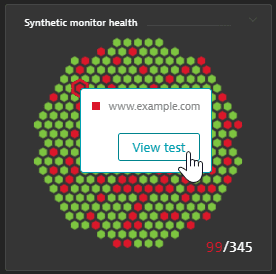
To drill down to a problematic (red) element, select the red hexagon and then select the View… button. On this example Synthetic monitor health tile, we have selected a red element, which enabled the View test drilldown button for that element.
-
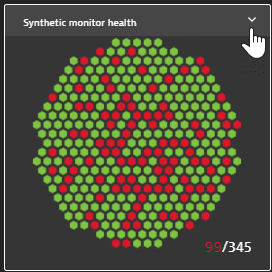
You can't drill down from a healthy (green) element. From any tile, however, you can select the menu in the upper-right corner of the tile and then select View details to display the relevant DESK page for the tile. For example, View details from a Synthetic monitor health tile displays the Synthetic monitors table.
¶ Configuration
¶ To configure this tile type from the dashboard editor
- Drag a Host health tile from the Edit dashboard pane, Tiles tab, to your dashboard
- optional Select whether to show a visualization on the tile
- optional Select a custom timeframe
- optional Select a custom management zone
- optional Select an environment
¶ To pin this tile to your dashboard with filters set
- Go to Hosts.
- Set filters in the Filtered by box.
- Select Pin to dashboard, select a target dashboard, and select Pin to add a Hosts tile to the selected dashboard with the selected filters. You can then set any of the options described above.
- The tile will reflect all filters and options you have set
- The next time you select the tile on your dashboard, the Hosts page will open with the filters and options already applied
¶ Network metrics
Displays network health metrics for traffic flowing through your monitored hosts. Shows current traffic volume and quality of communication of both new (Connectivity) and established sessions (Retransmissions).
¶ Drilldowns
- From the tile menu, select View details to open the Host networking page
¶ Configuration
¶ To configure this tile type from the dashboard editor
- optional Select a custom timeframe
- optional Select a custom management zone
- optional Select an environment
¶ Network status
Displays current network traffic flowing through your monitored hosts. Shows traffic volume, number of nodes (Talkers) exchanging network traffic, and number of nodes experiencing performance problems (Processes and Hosts).
¶ Drilldowns
From the tile menu, select View details to open the Host networking page
¶ Configuration
¶ To configure this tile type from the dashboard editor
- Drag a Network status tile from the Edit dashboard pane, Tiles tab, to your dashboard
- optional Select whether to show a visualization on the tile
- optional Select a custom timeframe
- optional Select a custom management zone
- optional Select an environment
¶ Docker
Displays current number of Docker containers and images compared to last week, plus current number of Docker hosts.
¶ Drilldowns
From the tile menu, select View details to open the Docker page
¶ Configuration
¶ To configure this tile type from the dashboard editor
- Drag a Docker tile from the Edit dashboard pane, Tiles tab, to your dashboard
- optional Select a custom timeframe
- optional Select a custom management zone
- optional Select an environment
¶ VMware
Displays current basic indicators related to the virtualized infrastructure in your environment, including the number of VMs, migration events, and the corresponding trends, as well as the number of ESXi hosts (standalone or managed by attached vCenter servers) against the number of ESXi hosts in your environment that are currently affected by problems. If there are multiple vCenter or ESXi hosts attached, all gathered data can be aggregated or presented for a selected entity.
¶ Drilldowns
From the tile menu, select View details to open the VMware page
¶ Configuration
¶ To configure this tile type from the dashboard editor
- Drag a VMware tile from the Edit dashboard pane, Tiles tab, to your dashboard
- optional Select a custom timeframe
- optional Select an environment
¶ AWS
Displays quick insights and health indicators of three services running under your AWS account:
- Elastic Compute Cloud (EC2) instances
- Elastic Block Storage (EBS)
- Classic Load Balancer (ELB)
¶ Drilldowns
From the tile menu, select View details to open the AWS page
¶ Configuration
¶ To configure this tile type from the dashboard editor
- Drag an AWS tile from the Edit dashboard pane, Tiles tab, to your dashboard
- Select an AWS account
- optional Select a custom timeframe
- optional Select an environment
¶ Services
¶ Service health
Displays an overview of all services monitored by DESK, including the number of services experiencing performance degradation. This high-level visualization provides an easily digestible view, which makes it a great fit for management dashboards.
Depending on the selected timeframe, the tile shows:
For a last X timeframe: the most recent time slot of data.
For other timeframe types: the average value within the timeframe.
¶ Drilldowns
¶ Health tile drilldowns
-
From a health tile (such as Host health, Service health, and Application health), where you see green and red elements (such as hosts, services, or applications), hover over any problematic (red) element to see the identity of the element.
-
To drill down to a problematic (red) element, select the red hexagon and then select the View… button. On this example Synthetic monitor health tile, we have selected a red element, which enabled the View test drilldown button for that element.
-
You can't drill down from a healthy (green) element. From any tile, however, you can select the menu in the upper-right corner of the tile and then select View details to display the relevant DESK page for the tile. For example, View details from a Synthetic monitor health tile displays the Synthetic monitors table.
¶ Configuration
¶ To configure this tile type from the dashboard editor
- Drag a Service health tile from the Edit dashboard pane, Tiles tab, to your dashboard
- optional Select whether to show a visualization on the tile
- optional Select a custom timeframe
- optional Select a custom management zone
- optional Select an environment
¶ To pin this tile to your dashboard with filters set
- Go to Services.
- Set filters in the Filtered by box.
- Select Pin to dashboard to add a Services tile to the selected dashboard with the selected filters. You can then set any of the options described above.
- The tile will reflect all filters and options you have set
- The next time you select the tile on your dashboard, the Services page will open with the filters and options already applied
¶ Service or request
Displays current key performance indicators related to the selected service or request (requests per minute, failure rate, and response time) in a resizable tile format.
¶ Drilldowns
From the tile menu, select View details to open the selected service or request details page
¶ Configuration
¶ To configure this tile type from the dashboard editor
- Drag a Service or request tile from the Edit dashboard pane, Tiles tab, to your dashboard
- Select a service type
- Select a service
- Select a key request
- optional Select a custom timeframe
- optional Select an environment
¶ To pin this tile to your dashboard with filters set
- Go to Services.
- Select a service.
- From the service page, select More (…) > Pin to dashboard. You can then set any of the options described above.
- The tile will reflect the options you have set
- The next time you select the tile on your dashboard, the service page will open with the options already applied
¶ Applications
¶ Top web applications
Displays load details related to up to three web applications in your environment that have the highest user-action rate.
- Current values are compared against baseline measurements (when available)
- Performance threshold violations are color coded in red
- optional Select a custom management zone
¶ Drilldowns
From the tile menu, select View details to open the Applications page filtered by web applications (and any other filters you set on the tile if you pinned it from the Applications page)
¶ Configuration
¶ To configure this tile type from the dashboard editor
- Drag a Top web applications tile from the Edit dashboard pane, Tiles tab, to your dashboard
- optional Select a custom management zone
¶ To pin this tile to your dashboard with filters set
- Go to Web.
- Set other filters as needed.
- Select Pin to dashboard, select a target dashboard, and select Pin.
¶ Application health
Displays the total number of applications in your environment versus the number of applications that are currently affected by problems. Opens your Applications page.
¶ Drilldowns
¶ Health tile drilldowns
-
From a health tile (such as Host health, Service health, and Application health), where you see green and red elements (such as hosts, services, or applications), hover over any problematic (red) element to see the identity of the element.
-
To drill down to a problematic (red) element, select the red hexagon and then select the View… button. On this example Synthetic monitor health tile, we have selected a red element, which enabled the View test drilldown button for that element.
-
You can't drill down from a healthy (green) element. From any tile, however, you can select the menu in the upper-right corner of the tile and then select View details to display the relevant DESK page for the tile. For example, View details from a Synthetic monitor health tile displays the Synthetic monitors table.
¶ Configuration
¶ To configure this tile type from the dashboard editor
- Drag an Application health tile from the Edit dashboard pane, Tiles tab, to your dashboard
- optional Select whether to show a visualization on the tile
- optional Select a custom timeframe
- optional Select a custom management zone
- optional Select an environment
¶ To pin this tile to your dashboard with filters set
- Go to Custom Applications, Frontend, Mobile, or Web.
- Set filters in the Filtered by box.
- Select Pin to dashboard to add an Application health tile to the selected dashboard with the selected filters. You can then set any of the options described above.
- The tile will reflect all filters and options you have set
- The next time you select the tile on your dashboard, the Applications page will open with the filters and options already applied
¶ User behavior
Displays key user behavior indicators related to the selected application (active sessions per minute, actions per session, and session duration) over the timeframe.
¶ Drilldowns
- From the tile menu, select View details to open the selected application's user behavior section
¶ Configuration
¶ To configure this tile type from the dashboard editor
- Drag a User behavior tile from the Edit dashboard pane, Tiles tab, to your dashboard
- Select an application from the list
- optional Select a custom timeframe
- optional Select an environment
¶ To pin this tile to your dashboard with filters set
- Go to Custom Applications, Frontend, Mobile, or Web, depending on the type of application you want to monitor.
- Select the application you want to monitor with a tile.
- Select the User behavior section of the infographic.
- Select Pin to dashboard, select a target dashboard, and select Pin.
- A User behavior tile for the selected application is pinned to the selected dashboard.
¶ User breakdown
Displays a user type breakdown (doughnut) by real users, robots, and monitors, and visualizes new users versus returning users over the timeframe.
¶ Drilldowns
- From the tile menu, select View details to open the selected application's user behavior section
¶ Configuration
¶ To configure this tile type from the dashboard editor
- Drag a User breakdown tile from the Edit dashboard pane, Tiles tab, to your dashboard
- Select an application you want to monitor with a tile
- optional Select a custom timeframe
- optional Select an environment
¶ World map
Displays a geographic map of the selected metric for the selected application.
The timeframe of the world map tile is always Last 2 hours, regardless of the global or dashboard timeframe setting. If you need to see a different timeframe, drill down to the full world map and change the timeframe there.
¶ Drilldowns
To open the full-sized world map page for the selected metric and location, either select the tile or select View details from the tile menu
¶ Configuration
¶ To configure this tile type from the dashboard editor
-
Drag a World map tile from the Edit dashboard pane, Tiles tab, to your dashboard
-
Select an application (or Most active application) from the list
-
Select a geolocation
-
Select the metric you want to map. There are two categories. You can select only one item.
Performance metric based on user actions:
-
Apdex
-
User actions
-
Load actions
-
XHR actions
-
Custom actions
-
Errors
Behavior metric based on sessions or users: -
Active sessions
-
Active users
-
Actions per session
-
Bounce rate
-
Session duration
¶ To pin this tile to your dashboard with filters set
- Go to Custom Applications, Frontend, Mobile, or Web, depending on the type of application you want to monitor.
- Select an application.
- On the infographic, select View geolocation breakdown.
- In the Geolocation breakdown section that is now displayed under the infographic, select View full world map.
- In the filter bar, set a Location filter to zoom that map to that location
- Select a metric button (Apdex, User actions, Load actions, XHR actions, Custom actions, or Errors) to focus the map on that metric
- Select Pin to dashboard, select the target dashboard, and select Pin.
¶ Troubleshooting:
- If you don't see data on the world map, you might need to map your internal IP addresses to locations for your web, mobile, and custom applications.
- Remember that the timeframe of a world map tile is always Last 2 hours, regardless of how you set the global or dashboard timeframe.
¶ Key user action overview
Displays an overview of the selected application's key user actions and any corresponding open problems.
¶ Drilldowns
From the tile menu, select View details to open the user action analysis page for the selected application with a full list of key user actions.
¶ Configuration
¶ To configure this tile type from the dashboard editor
- Drag a Key user action overview tile from the Edit dashboard pane, Tiles tab, to your dashboard
- Select an application from the list
- optional Select a custom timeframe
- optional Select an environment
¶ Bounce rate
Displays a comparison of the current bounce rate with yesterday and the number of entry actions.
¶ Drilldowns
From the tile menu, select View details to open the selected application's bounce rate analysis.
¶ Configuration
¶ To configure this tile type from the dashboard editor
- Drag a Bounce rate tile from the Edit dashboard pane, Tiles tab, to your dashboard
- Select an application from the list
- optional Select a custom timeframe
- optional Select an environment
¶ Top conversion goals
Displays the overall conversion rate and your top 5 goals for the selected application. This tile also serves as a direct link to the selected application goals view.
¶ Drilldowns
- From the tile menu, select View details to open the selected application's Conversion page.
¶ Configuration
¶ To configure this tile type from the dashboard editor
- Drag a Top conversion goals tile from the Edit dashboard pane, Tiles tab, to your dashboard
- Select an application from the list
- optional Select a custom timeframe
- optional Select an environment
¶ Conversion goal
Displays the overall conversion rate and completions for the selected goal. This tile also serves as a direct link to the selected application goals view.
¶ Drilldowns
- From the tile menu, select View details to open the selected application's goals view.
¶ Configuration
¶ To configure this tile type from the dashboard editor
- Drag a Conversion goal tile from the Edit dashboard pane, Tiles tab, to your dashboard
- Select an application from the list
- Select a goal
- optional Select a custom timeframe
- optional Select an environment
¶ JavaScript errors
Displays JavaScript error indicators related to the selected application (JavaScript errors per minute, percent affected user actions).
¶ Drilldowns
From the tile menu, select View details to open Compare JavaScript errors for the selected application.
¶ Configuration
¶ To configure this tile type from the dashboard editor
- Drag a JavaScript errors tile from the Edit dashboard pane, Tiles tab, to your dashboard
- Select an application from the list
- optional Select a custom timeframe
- optional Select an environment
¶ Resources
Displays load details for application-specific resources grouped by first-party, third-party, and CDN resources.
¶ Drilldowns
From the tile menu, select View details to open the application details page with Resources selected.
¶ Configuration
¶ To configure this tile type from the dashboard editor
- Drag a Resources tile from the Edit dashboard pane, Tiles tab, to your dashboard
- Select an application from the list
- Select a metric: Count per minute or Load time
- optional Select a custom timeframe
- optional Select an environment
¶ Most used 3rd parties
Displays load details related to the three third-party content providers that your application uses most frequently.
¶ Drilldowns
From the tile menu, select View details to open the application details page with Resources selected.
¶ Configuration
¶ To configure this tile type from the dashboard editor
- Drag a Most used 3rd parties tile from the Edit dashboard pane, Tiles tab, to your dashboard
- Select an application from the list
- Select a metric: 3rd party, CDN, or 1st party
- optional Select a custom timeframe
- optional Select an environment
¶ Mobile app
Displays key performance indicators related to the selected mobile app (users, crash-free user rate, and number of crashes).
¶ Drilldowns
From the tile menu, select View details to open the selected mobile app page.
¶ Configuration
¶ To configure this tile type from the dashboard editor
- Drag a Mobile map tile from the Edit dashboard pane, Tiles tab, to your dashboard
- Select a mobile app from the list.
- optional Select a custom timeframe.
- optional Select an environment.
¶ To pin this tile to your dashboard with filters set
- Go to Mobile.
- Select the mobile application for which you want to create a dashboard tile.
- On the application page, select Pin to dashboard, select the target dashboard, and select Pin.
¶ Custom application
Displays key performance indicators related to the selected custom application (users, crash free user rate, and number of crashes).
¶ Drilldowns
From the tile
¶ Configuration
¶ To configure this tile type from the dashboard editor
- Drag a Custom application tile from the Edit dashboard pane, Tiles tab, to your dashboard
- Select a custom application from the list
- optional Select a custom timeframe
- optional Select an environment
¶ To pin this tile to your dashboard with filters set
- Go to Custom Applications.
- Select the custom application you want to monitor with a dashboard tile.
- On the application page, select Pin to dashboard, select the target dashboard, and select Pin.
¶ Live user activity
Displays the number of current live users overall as well as your applications with most live users.
¶ Drilldowns
From the tile menu, select View details to open User sessions filtered for Live: Yes and User type: Real users.
¶ Configuration
¶ To configure this tile type from the dashboard editor
- Drag a Live user activity tile from the Edit dashboard pane, Tiles tab, to your dashboard
- optional Select a custom timeframe
- optional Select a custom management zone
- optional Select an environment
¶ Web application
Displays key performance indicators related to the selected application: Apdex rating, user actions per minute, and number of JavaScript errors per minute.
¶ Drilldowns
From the tile menu, select View details to open the selected application page.
¶ Configuration
¶ To configure this tile type from the dashboard editor
- Drag a Web application tile from the Edit dashboard pane, Tiles tab, to your dashboard
- Select an application from the list
- optional Select a custom timeframe
- optional Select an environment
¶ To pin this tile to your dashboard with filters set
- Go to Web.
- Select the web application you want to monitor with this tile.
- Display the Performance analysis section of the infographic.
- Select Pin to dashboard.
- A Web application tile for the selected application is pinned to the selected web dashboard.
¶ Key user action
Displays key performance indicators related to the selected application and key user action: user action duration, user actions/min, and number of errors/min.
¶ Drilldowns
From the tile menu, select View details to open the selected key user action page for the selected application and key user action.
¶ Configuration
¶ To configure this tile type from the dashboard editor
- Drag a Key user action tile from the Edit dashboard pane, Tiles tab, to your dashboard
- Select an application from the list
- Select a key user action from the list
- optional Select a custom timeframe
- optional Select an environment
¶ To pin this tile to your dashboard with filters set
-
Go to Custom Applications, Frontend, Mobile, or Web, depending on the type of application you want to monitor.
-
Select the application you want to monitor with this tile.
-
In the Top 3 user actions section, select View full details.
-
Select a key user action.
-
If the user action has already been selected as a key user action, select it in the Key user actions list.
-
If the user action has not been selected as a key user action, select a user action from the Top 100 user actions tab, and then select More (…) > Mark as key user action.
-
The Pin to dashboard button is now displayed.
Select Pin to dashboard, select a target dashboard, and select Pin.
¶ User Sessions Query
Create advanced queries on completed user sessions with user sessions query language.
¶ Drilldowns
From the tile menu, select View details to open the user sessions query page for this query.
¶ Configuration
¶ To configure this tile type from the dashboard editor
- Drag a User Sessions Query tile from the Edit dashboard pane, Tiles tab, to your dashboard
- Select Configure tile in the User Sessions Query configuration pane
- On the User sessions query page, create a query and select Run query
- When you have a query that you want to link to your tile, select Save changes to dashboard
- optional Select a custom timeframe
- optional Select a custom management zone
- optional Select an environment
¶ Service-level objectives
¶ Service-level objective
Displays the following:
Title
Status: numeric value displayed in green (good), yellow (warning), red (bad), or gray (no data).
Error budget: numeric value displayed in green (good), yellow (warning), red (bad), or gray (no data).
-
Target: numeric value
-
Problems indicator is optional
-
Legend (colors) and metric names are optional
-
Colorized based on status is optional
-
Tiles filters*Environment
-
optional Set Title
For more information, see Configure and monitor service-level objectives with DESK.
¶ Drilldowns
From the tile menu, select View details to open the Service-level objectives page filtered to the selected SLO.
¶ Configuration
¶ Drag a Service-level objective tile from the Edit dashboard pane, Tiles tab, to your dashboard
- Set Select a SLO to one of the listed service-level objectives.
- Adjust its configuration as needed.
- optional Set Max shown decimals to a different value.
- optional Turn Show metric names on or off.
- optional Turn Show legend on or off.
- optional Turn Show problems indicator on or off.
- optional Turn Colorize based on status on or off.
- optional Select a custom timeframe.
- optional Select an environment.
- Select Done.
¶ To pin this tile to your dashboard with filters set
- Go to Service-Level Objectives.
- Find the SLO you want to pin to the dashboard.
- In the Actions column, select the pin icon for that SLO.
- Select the dashboard to which you want to pin the tile.
- Select Pin.
- Select Open dashboard to open the dashboard in edit mode with the new tile selected.
- Adjust its configuration as needed.
- optional Turn Show legend on or off.
- optional Turn Show metric names on or off.
- optional Turn Show problems indicator on or off.
- optional Set Max shown decimals to a different value.
- optional Select a custom timeframe.
- optional Select an environment.
- Select Done.
¶ Synthetic
¶ Browser monitor
Displays key performance indicators related to the selected browser monitor (availability, duration, and location status).
¶ Drilldowns
From the tile menu, select View details to open the selected browser monitor page.
¶ Configuration
¶ To configure this tile type from the dashboard editor
- Drag a Browser monitor tile from the Edit dashboard pane, Tiles tab, to your dashboard
- Select a browser monitor from the list
- optional Exclude maintenance windows from availability calculations
- optional Select a custom timeframe
- optional Select an environment
¶ To pin this tile to your dashboard with filters set
- Go to Synthetic Classic.
- To filter the list, set Type of synthetic monitor to Browser.
- Select the browser monitor for which you want to create a dashboard tile.
- On the browser monitor page, select Pin to dashboard, select the target dashboard, and select Pin.
¶ Synthetic monitor health
Displays the number of active synthetic monitors in your environment against the number of synthetic monitors in your environment that are currently affected by problems.
¶ Drilldowns
¶ Health tile drilldowns
-
From a health tile (such as Host health, Service health, and Application health), where you see green and red elements (such as hosts, services, or applications), hover over any problematic (red) element to see the identity of the element.
-
To drill down to a problematic (red) element, select the red hexagon and then select the View… button. On this example Synthetic monitor health tile, we have selected a red element, which enabled the View test drilldown button for that element.
-
You can't drill down from a healthy (green) element. From any tile, however, you can select the menu in the upper-right corner of the tile and then select View details to display the relevant DESK page for the tile. For example, View details from a Synthetic monitor health tile displays the Synthetic monitors table.
¶ Configuration
¶ To configure this tile type from the dashboard editor
- Drag a Synthetic monitor health tile from the Edit dashboard pane, Tiles tab, to your dashboard
- optional Show a visualization on the tile
- optional Select a custom timeframe
- optional Select a custom management zone
- optional Select an environment
¶ To pin this tile to your dashboard with filters set
- Go to Synthetic Classic.
- Set filters in the Filtered by box.
- Select Pin to dashboard to add a Hosts tile to the selected dashboard with the selected filters. You can then set any of the options described above (timeframe, management zone, environment).
- The tile will reflect all filters and options you have set
- The next time you select the tile on your dashboard, the Synthetic page will open with the filters and options already applied
¶ Third-party monitor
Displays key performance indicators related to the selected third-party monitor (availability, duration, and location status).
¶ Drilldowns
From the tile menu, select View details to open the selected third-party monitor page.
¶ Configuration
¶ To configure this tile type from the dashboard editor
- Drag a Third-party monitor tile from the Edit dashboard pane, Tiles tab, to your dashboard
- Select a third-party monitor from the list
- optional Select a custom timeframe
- optional Select an environment
¶ To pin this tile to your dashboard with filters set
- Go to Synthetic Classic.
- In the Filtered by box, set Type of synthetic monitor to Third-party.
- Select the third-party monitor for which you want to create a dashboard tile.
- On the third-party monitor page, select Pin to dashboard, select the target dashboard, and select Pin.
¶ HTTP monitor
Displays key performance indicators related to the selected HTTP monitor (availability and duration).
¶ Drilldowns
From the tile menu, select View details to open the selected HTTP monitor page.
¶ Configuration
¶ To configure this tile type from the dashboard editor
- Drag an HTTP monitor tile from the Edit dashboard pane, Tiles tab, to your dashboard
- Select an HTTP monitor from the list
- optional Select a custom timeframe
- optional Select an environment
¶ To pin this tile to your dashboard with filters set
- Go to Synthetic Classic.
- In the Filtered by box, set Type of synthetic monitor to HTTP.
- Select the HTTP monitor for which you want to create a dashboard tile.
- On the HTTP monitor page, select Pin to dashboard, select the target dashboard, and select Pin.
¶ Databases
¶ Database health
Displays the number of databases in your environment against the number of databases that are currently affected by problems.
¶ Drilldowns
¶ Health tile drilldowns
-
From a health tile (such as Host health, Service health, and Application health), where you see green and red elements (such as hosts, services, or applications), hover over any problematic (red) element to see the identity of the element.
-
To drill down to a problematic (red) element, select the red hexagon and then select the View… button. On this example Synthetic monitor health tile, we have selected a red element, which enabled the View test drilldown button for that element.
- You can't drill down from a healthy (green) element. From any tile, however, you can select the menu in the upper-right corner of the tile and then select View details to display the relevant DESK page for the tile. For example, View details from a Synthetic monitor health tile displays the Synthetic monitors table.
¶ Configuration
¶ To configure this tile type from the dashboard editor
- Drag a Database health tile from the Edit dashboard pane, Tiles tab, to your dashboard
- optional Show a visualization on the tile
- optional Select a custom timeframe
- optional Select a custom management zone
- optional Select an environment
¶ Database performance
Displays key performance indicators related to the selected database service (commits per hour, statements per minute, and response time).
¶ Drilldowns
From the tile menu, select View details to open the selected Database service page.
¶ Configuration
¶ To configure this tile type from the dashboard editor
- Drag a Database performance tile from the Edit dashboard pane, Tiles tab, to your dashboard
- Select a database service from the list.
- optional Select a custom timeframe
- optional Select an environment
¶ Integrations
¶ Data center service health
Displays the total number of data center services in your environment against the number of data center services that are currently affected by problems.
¶ Drilldowns
¶ Health tile drilldowns
-
From a health tile (such as Host health, Service health, and Application health), where you see green and red elements (such as hosts, services, or applications), hover over any problematic (red) element to see the identity of the element.
-
To drill down to a problematic (red) element, select the red hexagon and then select the View… button. On this example Synthetic monitor health tile, we have selected a red element, which enabled the View test drilldown button for that element.
-
You can't drill down from a healthy (green) element. From any tile, however, you can select the menu in the upper-right corner of the tile and then select View details to display the relevant DESK page for the tile. For example, View details from a Synthetic monitor health tile displays the Synthetic monitors table.
¶ Configuration
¶ To configure this tile type from the dashboard editor
- Drag a Data center service health tile from the Edit dashboard pane, Tiles tab, to your dashboard
- optional Select a custom timeframe
- optional Select a custom management zone
- optional Select an environment
¶ Analysis
¶ Problems
Displays the number of problems that are currently watched and active against the number of resolved problems in your environment. When a problem is active, the problem count is displayed in red.
¶ Drilldowns
From the tile menu, select View details to open your Problems feed.
¶ Configuration
¶ To configure this tile type from the dashboard editor
- Drag a Problems tile from the Edit dashboard pane, Tiles tab, to your dashboard
- optional Select a custom timeframe
- optional Select a custom management zone
- optional Select an environment
¶ Smartscape
Synthetically visualizes your environment components based on Smartscape analysis. The tile display constantly cycles through the five Smartscape layers: applications, services, OS processes, hosts, and datacenters. For each layer, the tile shows the total number in your environment and, in red, the number currently affected by problems.
¶ Drilldowns
From the tile menu, select View details to open your Smartscape topology view to the Services layer.
¶ Configuration
¶ To configure this tile type from the dashboard editor
- Drag a Smartscape tile from the Edit dashboard pane, Tiles tab, to your dashboard
- optional Select a custom timeframe
- optional Select a custom management zone
- optional Select an environment
¶ Log query table
Displays log events matching the specific log data query. Only columns configured in the log viewer for that query are displayed in the table tile.
¶ Configuration
¶ To pin this tile type to your dashboard with filters set
- Go to Logs.
- In Log Viewer, enter the log query that you want the tile to reflect.
- optional Select Table options to specify which table columns to display.
- Select Pin to dashboard, select the target dashboard, and then select Pin.
- Select Open dashboard to see the new tile on the dashboard.
- The tile displays the results of the query you specified in Log Viewer.
- Only the columns you specified with Table options are displayed.
¶ To configure this tile type from the dashboard editor
- Drag a Log query table tile from the Edit dashboard pane, Tiles tab, to your dashboard.
- Select Configure tile to display Log Viewer.
- Enter a log query.
- optional Select Table options to specify which table columns to display.
- Select Save changes to dashboard to return to editing the Log query table tile on the dashboard.
- optional Select a custom timeframe.
- optional Select a custom management zone.
- optional Select an environment.