¶ Configure and use a graph visualization in DESK
Dashboards Classic
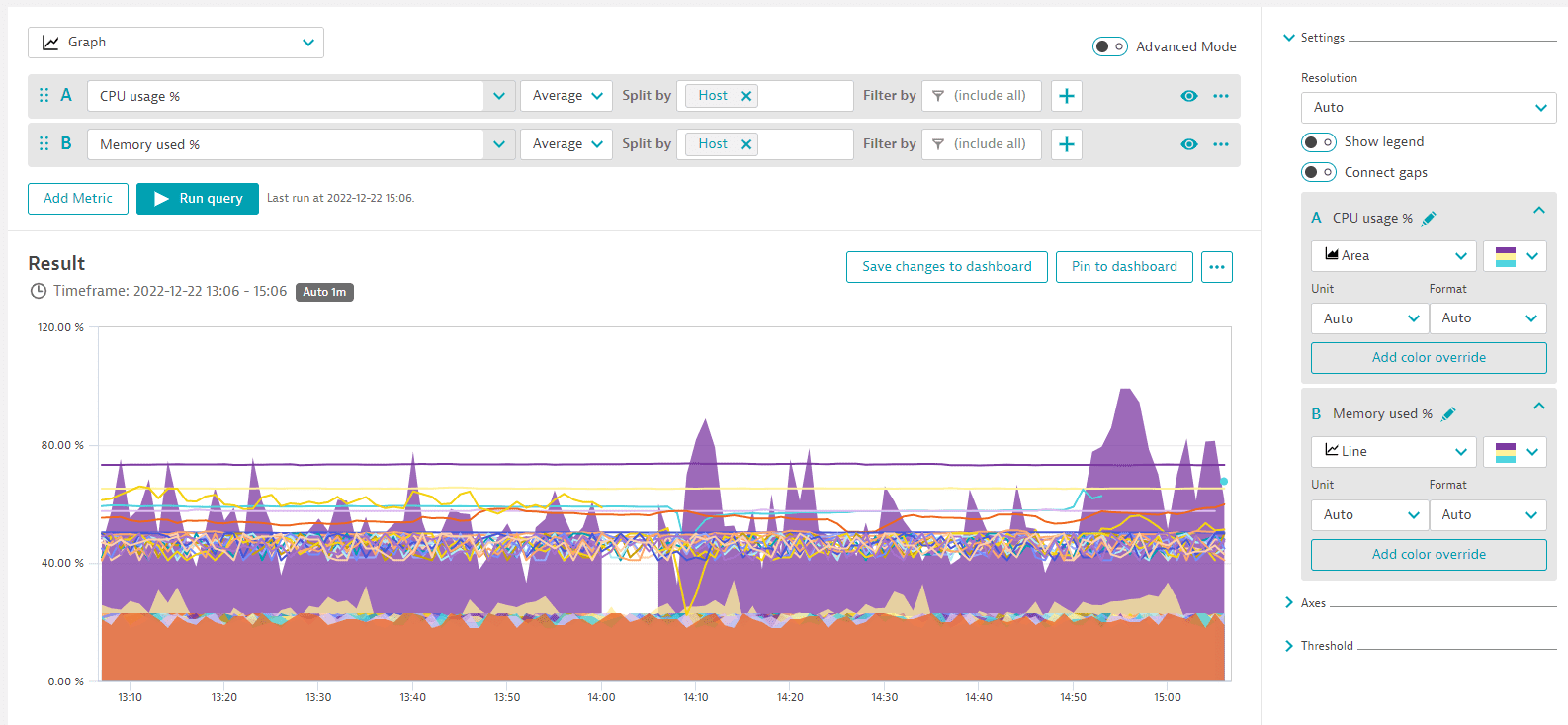
To visualize your query results as a graph, select Graph from the list above the query definition, in the upper-left corner of the page.
A graph can show up to 20 series per metric.
¶ Example in Data Explorer
¶ Example pinned to a dashboard as a tile
¶ Change visualization
When switching between visualizations, be aware that some visualization settings are visualization-specific.
- If you select a visualization and configure Settings for that visualization, and then you switch to a different visualization, some of your settings for the first visualization may be ignored because they don't apply to the newly selected visualization. An information icon in the list of visualizations will alert you to the possibility.
- If you switch back to the original visualization, you may need to reconfigure some visualization settings.
¶ Change metric selection
Your visualization can show any selection of metrics in a multi-metric query.
To toggle metrics on and off, you can select the letter next to the metric you want to visualize, or you can select the eye icon .
¶ Baselines
To help you identify anomalies, you can use baselining to add a confidence band to a metric's line on the chart. Then you can see when the value goes outside the confidence band. The baseline calculation is based on the Seasonal baseline model which is used to create metric events for anomaly detection.
-
Baselines apply only to the Graph visualization.
-
Baselines are not added to the dashboard tile when you pin a chart to a dashboard.
-
The timeframe used to infer the baseline is determined by the currently selected resolution:
| Resolution range | Resolution examples | Baseline timeframe |
|---|---|---|
| resolution < 5 minutes | • 1 minute • 5 minutes • 10 minutes • 30 minutes |
previous 14 days |
| 5 minutes ≥ resolution < 1 hour | previous 28 days | |
| 1 hour ≥ resolution < 1 day | • 1 hour • 6 hours • 12 hours |
400 days |
| resolution ≥ 1 day | • 1 day • 1 week • 1 month |
5 years |
¶ Add a baseline
- On the graph, select the line for the metric you want to baseline.
- In the pop-up, select Add baseline.
- Wait a moment while the baseline is calculated (Loading). The graph is then redrawn with the baseline displayed for the metric you selected.
¶ Hide or show a baseline
Baselines are listed separately in the chart legend. For example, if you add a baseline to the CPU usage % metric in a Graph visualization, the legend lists CPU usage % and CPU usage % - baseline. Select the legend entries to toggle their display on or off.
¶ Remove a baseline
- On the graph, select the line for the metric from which you want to remove the baseline.
- In the pop-up window, select Remove baseline. The graph is redrawn with the baseline removed.
¶ Compared to metric event baselines
You may notice differences between baselines in Data Explorer and metric events. These features offer different approaches to suit their different contexts. In general, the Data Explorer configuration is fixed, while the metric events configuration is configurable.
| Parameter | Data Explorer | Metric events |
|---|---|---|
| Samples | 5 | Configurable |
| Violating samples | 3 | Configurable |
| Dealerting samples | 5 | Configurable |
| Alert on no data | false | Configurable |
| Tolerance (affects width of confidence band) | 4 | Configurable (range: 0.1 to 10) |
| Resolution (affects granularity) | Configurable | 1 minute |
| Training time | Instantaneous | Daily |
For details on seasonal baselining, see Seasonal baseline.
¶ Baselines FAQ
¶ How is the baseline calculated?
The baseline calculation is based on the seasonal baseline model used to create metric events for anomaly detection. For details on the inner workings of the model, see Seasonal baseline.
¶ Why is the baseline different from the seasonal baseline model preview?
Although the baseline model is based on the seasonal baseline model, there are several reasons why the resulting baselines can differ:
- Resolution: The baseline in Data Explorer is derived from the data depending on the currently selected resolution as described above. A seasonal baseline model of a metric event configuration always learns the behavior from 1-minute resolution data. If the resolutions are different, the resulting baseline differs as the metric values are also different.
- Baseline timeframe: The timeframe used to infer the baseline is determined by the currently selected resolution as described above. As metric event configurations always use 1-minute resolution data, the training timeframe can differ, which also can lead to different baselines.
- Model parameters: The baseline in Data Explorer uses fixed default parameters to train a baseline model:
- Tolerance = 4
- Alert condition = 'Alert if metric is outside'
- No alert on missing data If the parameters are different in the metric event configuration, the resulting baseline can be different.
¶ Correlated metrics
DESK Davis® takes domain-specific knowledge and topology into account when computing connected observability signals. Davis ranks the most relevant signals on top, and the Davis score for each detected signal indicates how closely the signal matches the reference signal's behavior during the selected timeframe. More about Davis® AI.
¶ Add correlated metrics
Note that this option is available only if you Split by a dimension in the query.
Go to Data Explorer (standard or advanced mode), create a query of a metric series split by a related dimension, and display it in the Graph visualization.
Correlated metrics are available only if you:
- Select the Graph visualization
- Specify a query that is Split by a dimension related to the selected data series
Try this example:
That's this in Advanced mode:

builtin:host.cpu.usage:splitBy("dt.entity.host"):sort(value(auto,descending)):limit(20)
-
Select Run query to graph the query.
-
Select (click on) a line on the graph to display a pop-up window of related options.
-
In the pop-up window, select See correlated metrics.
-
The Davis for Correlation analysis side panel lists metrics that, based on Davis AI correlation analysis, are correlated to the selected series. This correlation is determined by the shape of the series, not the values.
¶ What does the analyzer display?
-
Reference signal represents the data series you selected on the graph. Other shapes of other metric series are compared to the shape of this series.
-
Connected signals are other metric series that have a similar shape, sorted by most similar to least similar. The more similar the shape, the closer the correlation.
-
For each correlated metric, the analyzer displays:
-
Metric name
-
Dimension
-
ID of the entity
-
Correlations are sometimes grouped.
-
In the side panel, select any listed metric to automatically add it to your current query.
-
You can add multiple correlated metrics to your query
-
You can add the same metric multiple times and then edit the query
-
After you add correlated metrics, select Run query to update the graph.
¶ Correlated metrics FAQ
¶ What does "correlation" mean in this context?
To determine correlation, the analyzer checks the shape of the data series, not the values. Two series with very similar shapes are correlated.
¶ Why is the "See correlated metrics" option unavailable?
Possible reasons why you see no "See correlated metrics" option include:
- You didn't select the Graph visualization
- You didn't Split by a dimension in your query
- You didn't run the query to draw a graph
- You didn't select (click on) a line in the graph
¶ What does "No connected signals found" mean?
If No connected signals found is displayed, possibilities include:
- Too little variance in the sample (for example, a metric that is a straight line)
- Too few data points in the sample (for example, in a very short timeframe)
¶ Focus
To temporarily remove potential clutter from your graph and focus on a single metric, you can hide everything but a selected metric series.
Focus applies only to the Graph visualization.
Focus does not change your query and does not affect the dashboard tile when you pin a chart to a dashboard.
¶ Focus on a metric series
On a line graph, select the line for the metric you want to focus on.
-
In the pop-up, select Focus.
-
The graph is redrawn with only the selected metric displayed.
¶ Remove focus
-
On the graph, select the line for the metric you have focused on.
-
In the pop-up, select Remove focus.
The graph is redrawn to display all metrics.
¶ Settings
The Settings section is one of the expandable sections in the right panel of Data Explorer. The contents of the Settings section may vary depending on the visualization you have selected.
¶ Resolution
Resolution is the X axis (time) granularity of the visualization.
- To allow Data Explorer to automatically select an appropriate resolution for the selected timeframe, in the Settings section, set Resolution to Auto
- To specify a certain resolution, select one from the list
Some resolutions are unavailable for some timeframes. If you select an incompatible combination of timeframe and resolution, DESK automatically selects a resolution and displays an explanatory message such as: Auto-resolution applied. Resolution value of [6 hours] applied. Selected timeframe doesn't allow for [5 minutes] resolution. To override auto-resolution, select a different resolution from the list.
Smart resolution on dashboard tiles
To prevent performance issues on dashboard tiles created with Data Explorer, the maximum number of data points for a query on a dashboard tile is 4,000. Based on the selected timeframe and the applied custom resolution, DESK projects the number of data points for the query result. If the projected number of data points exceeds 4,000, DESK automatically switches to a resolution high enough to keep the number of data points below 4,000.
Note that this does not apply to visualizations in Data Explorer itself, where you can have more than 4,000 data points. It applies only to dashboard tiles created with Data Explorer where the resolution/timeframe combination selected on the dashboard results in more than 4,000 data points.
¶ Show legend
Whether to display a legend under the visualization.
Note that the legend is active: you can select a legend entry to toggle display of the corresponding entry on or off.
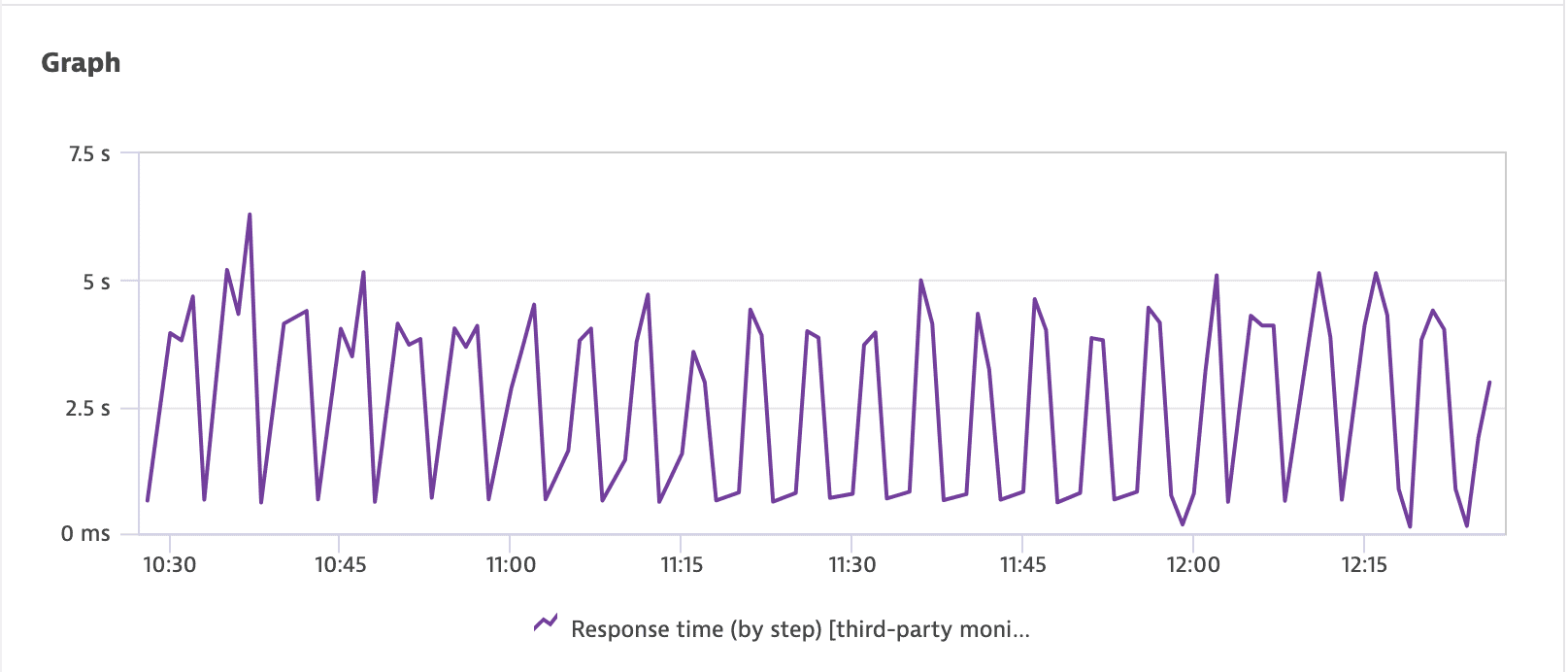
¶ Connect gaps
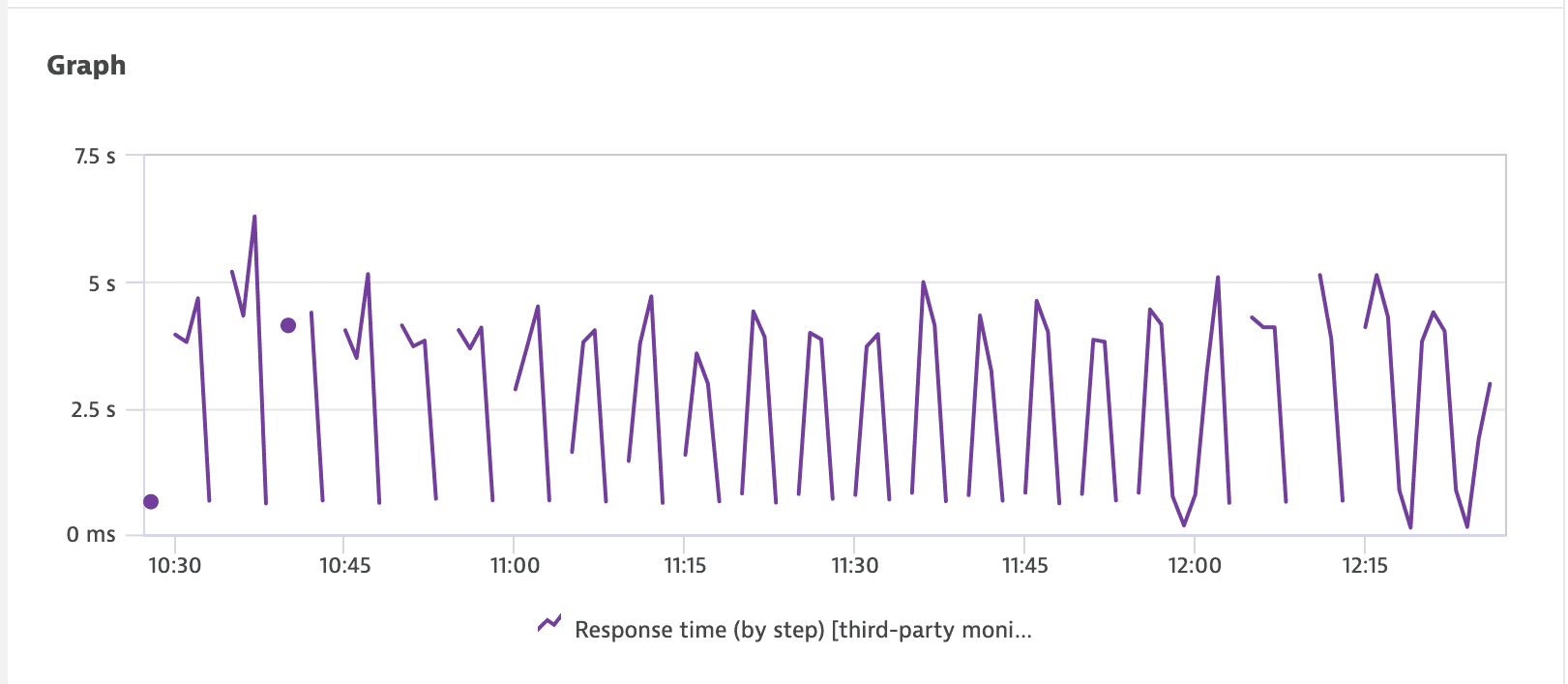
To connect gaps in a chart, in the Settings section, turn on Connect gaps.
¶ Connect gaps: before
¶ Connect gaps: after
¶ Settings per metric
The Settings section also displays visualization options per metric selected for the query.
¶ Rename a metric
You can change the name of a metric as it is displayed on the chart and in the chart legend. The query definition retains the metric's original name.
In the Settings section, select for the metric you want to rename.
Edit the name, and then select the checkmark to save the new name.
¶ Change chart mode
To change the chart mode for a metric, in the Settings section, select a new chart mode from the list.
- Line
- Column
- Area
¶ Change color palette
To change the color palette for a metric, in the Settings section, select a new palette from the list.
¶ Unit and Format
Use the Unit and Format settings to determine how your data is displayed. If you export to a CSV file, the Unit and Format settings are also reflected in the exported values.
¶ Unit
Use the Unit setting to set the unit in which the metric is displayed.
- None = No unit displayed
- Auto = DESK selects an appropriate display unit
- Other selections specify the exact unit to display. The options here depend on the metric's unit. A time metric, for example, offers alternative units for displaying time.
- To add a custom unit/suffix string, type the custom string in the Unit box and then select it from the list.
- In Advanced mode, you can use :setUnit
(<unit>)to select from a wider range of units.
Examples of order-of-magnitude notation in DESK:
| Notation | Factor | Meaning |
|---|---|---|
| k | 10^3 | kilo, thousand |
| M | 10^6 | mega, million |
| G | 10^9 | giga, billion |
| T | 10^12 | tera, trillion |
¶ Format
Use the Format setting to configure the number of decimal places displayed for the selected metric.
None = No formatting.
Auto = DESK selects an appropriate format. For example, where None would display 5.062357754177517 %, Auto would display 5.06 %.
Other selections specify the number of decimal places to display: 0, 0.0, 0.00, 0.000
¶ Examples
¶ Example: bytes
When the basic unit of the metric is bytes:
- If you set Unit to Auto, DESK automatically expresses the results in a human-readable unit, which in this case could be GiB.
A byte-based unit can have either a binary or decimal base, which will determine whether DESK selects, for example, GiB or GB. If no base is defined in the metric itself, a decimal base is used.
-
If the automatically selected unit isn't suitable in your case, you can force DESK to express the same values in a specific unit (Unit = B, KiB, MiB, or GiB).
-
If you want to see raw data (no conversion), you can set Unit to None and see the results in the basic unit of the metric (which in this case is bytes).
¶ Example: dollars and cents
When the basic unit of a metric is dollars and cents:
- For smaller values, to see the results expressed in exact dollars and cents: set Unit to Auto, and set Format to 0.00 (to have two decimal places for the cents).
- For larger values, to see the results expressed in thousands, millions, or billions of dollars and no cents: set Unit to k (thousand), M (million), G (billion), and set Format to 0 (to see nothing after the decimal point).
¶ Example: exact counts
When the basic unit for the metric is a count:
To see an exact count:
Set Unit to Auto
Set Format to None
To see a rough count:
Set Unit to k (thousand), M (million), G (billion), or T (trillion), depending on the magnitude of your values
Set Format to 0.0, 0.00, or 0.0000, depending on how many decimal places make sense in combination with the selected Unit setting
¶ Example: thresholds
When setting threshold values:
- If you select a Unit (for example, MiB), the Threshold settings are then prepared to match the selected unit, so you just need to enter threshold values without specifying MiB.
- If you set Unit to Auto (to let DESK automatically scale the displayed output), you still need to set Threshold values in a specific unit such as bytes.
¶ Add color override
To force a different color (override the color palette) for a specific series such as a selected host
In the Settings section, select Add color override
Select the series from the list
Select the override color for that series
¶ Axes
The Axes section is one of the expandable sections in the right panel of Data Explorer. In the Axes section, you can control how the X axis and each Y axis of your visualization are displayed.

¶ Walkthrough of axis settings
In this walkthrough, you add some metrics to a visualization and see how to adjust the axis settings in the Axes section of the Settings for your graph. (This example uses a Graph visualization, but the same settings apply to other visualizations that have axis settings.)
-
o to Data Explorer.
-
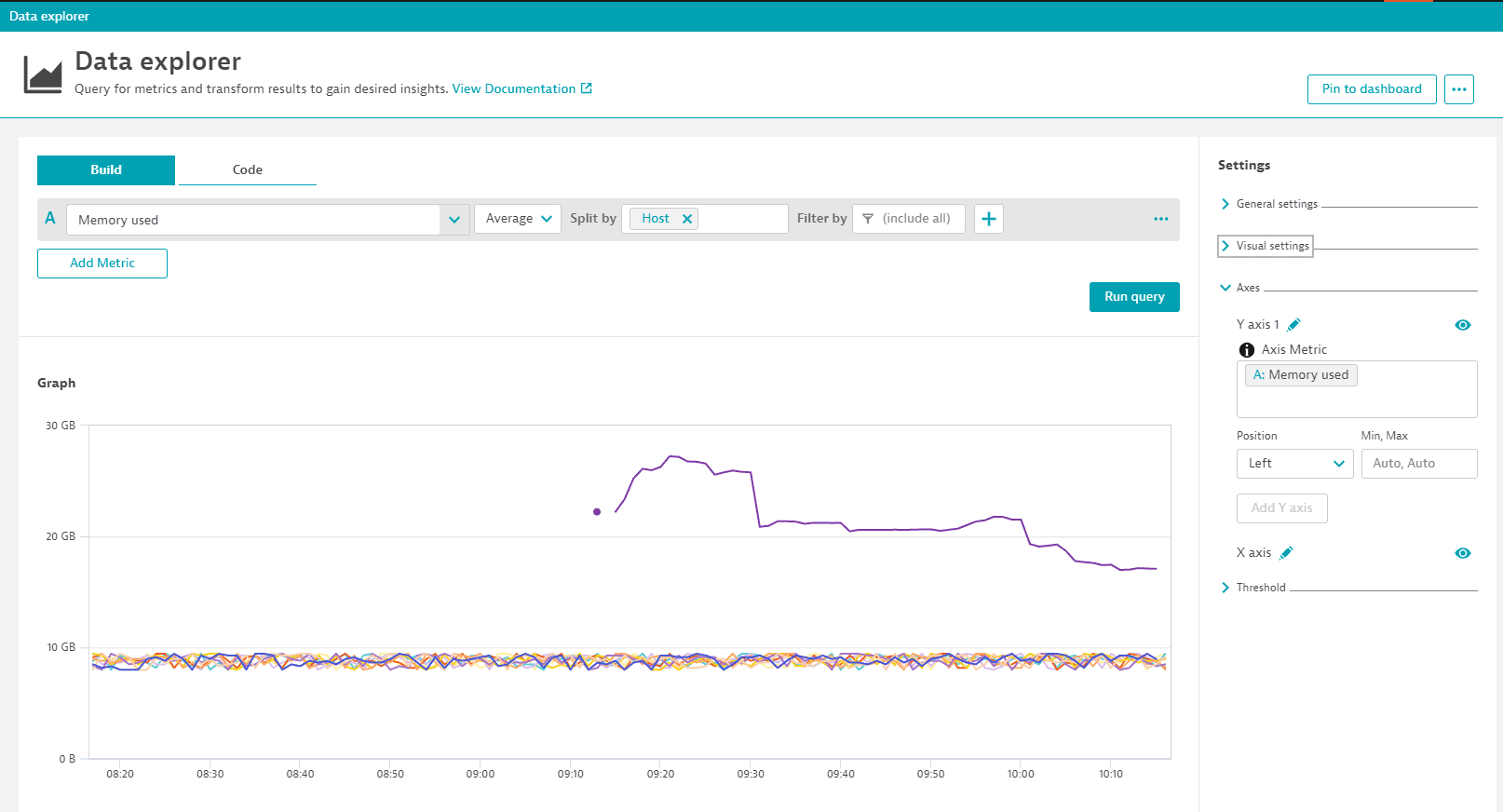
In Data Explorer, add metric builtin:host.mem.used, split by Host, and select Run query.
-
The X axis, which is displayed along the bottom of the graph, is the current timeframe as determined by the timeframe selector.
-
The X axis has no name by default, but you can name it: in the Axes section, find X axis, select in the X axis row, change the name (for example, to Time), and then select the checkmark to save the new name.
-
To toggle the display of the X axis on and off, select in the X axis row.
-
The Y axis by default is displayed up the left side of the graph.
-
There can be more than one Y axis on a chart. The first one is automatically labeled Y axis 1 in the Axes section. In this example, it displays memory used in GB, corresponding to the first metric you have added to your chart, Memory used (builtin:host.mem.used).
-
As with the X axis, you can name and hide/show the Y axis: find Y axis 1 in the Axes section and select and accordingly.
-
To move the Y axis to the right of the chart, change Position from Left to Right.
-
To specify the range of a Y axis, change Min, Max from Auto, Auto to numeric values. For example, set Min, Max for this metric (Memory used) to 5, 10 to
-
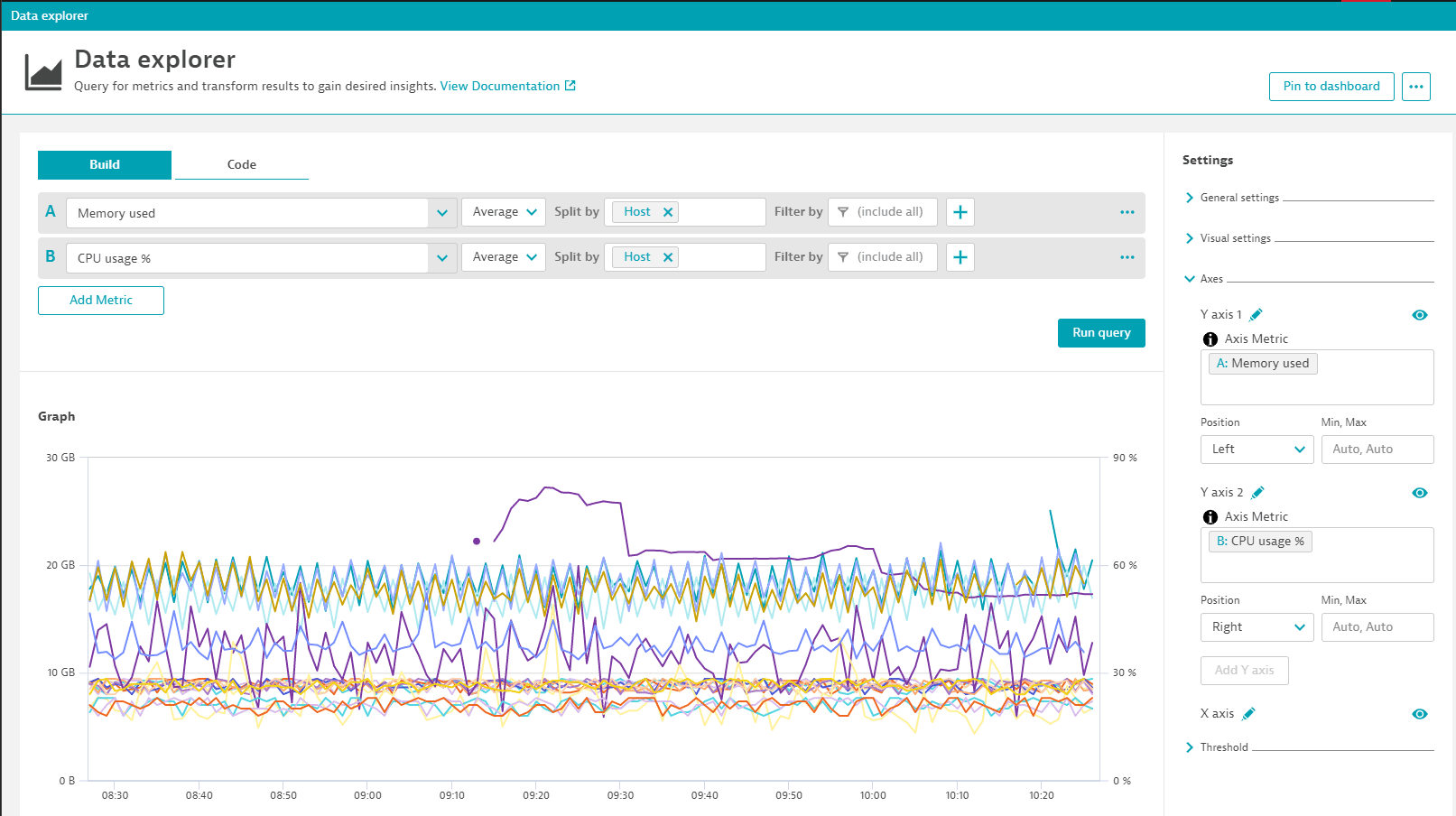
Select Add metric and add metric builtin:host.cpu.usage, split by Host, and select Run query again.
-
The Y axis for the second metric (CPU usages %) is displayed up the right side of the graph to indicate CPU usage percentage. (If you moved the Y axis in the previous step, now they both run up the same side of the chart.)
-
In the Axes section, a new Y axis 2 section is displayed.
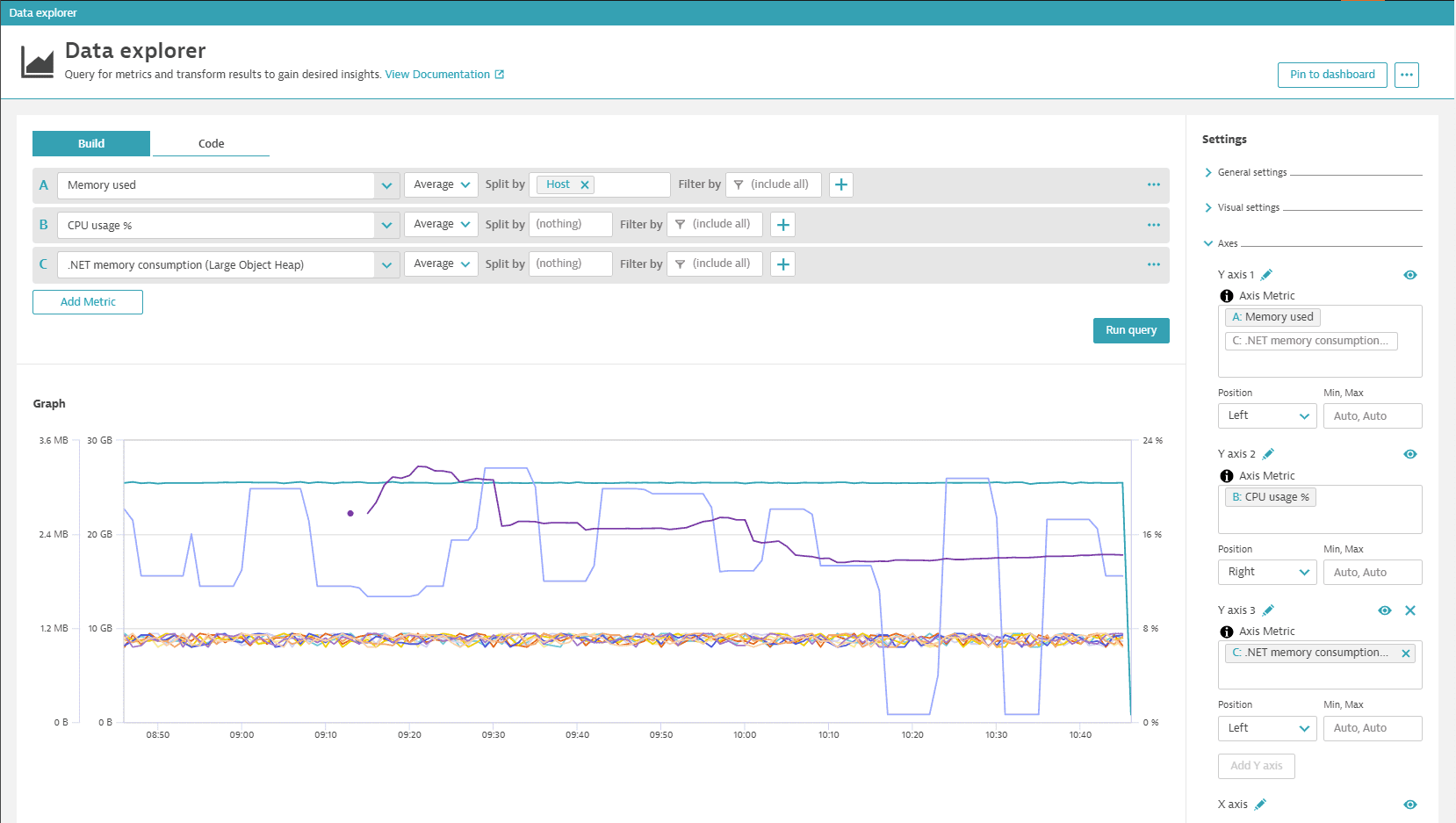
Additional Y axes are not created automatically for any subsequent metrics you add to the chart, but you can add them manually: after you add the metric to your query, select Add Y axis in the Axes section, select in the empty Axis Metric box, and then select the metric you want to display for the new axis. Below, a third metric has been added with a third Y axis for .NET memory consumption (Large Object Heap).
¶ Name an axis
To name an axis
- In the Axes section, find the axis you want to rename.
- Select next to the axis name.
- Enter a new name and select the checkmark to save the change.
The axis name is displayed vertically next to a Y axis and horizontally under the X axis.
¶ Hide or show an axis
To hide an axis
- In the Axes section, find the axis you want to hide.
- Select .
To unhide the axis, select again.
¶ Define an axis position
To specify the side of the chart on which to display a Y axis
- In the Axes section, find the Y axis you want to move.
- Set Position to Left or Right.
¶ Set an axis minimum and maximum
By default, minimum and maximum axis values are set automatically.
To set custom minimum and maximum values for an axis
- In the Axes section, find the axis for which you want to define a minimum and maximum.
- Change the value of Min, Max from Auto, Auto to a comma-separated pair of values corresponding to the values on the selected axis.
¶ Threshold
The Threshold section is one of the expandable sections in the right panel of Data Explorer. The contents of this section may vary depending on the visualization you have selected. Use threshold settings to enhance your visualizations and tiles.

Set threshold values after you set Unit:
If you set Unit first, the threshold settings are prepared to match the selected unit.
If you change Unit after you set threshold values, the threshold values are not automatically adjusted to match the new unit setting.
¶ Set thresholds
- In the Thresholds section, enter threshold values
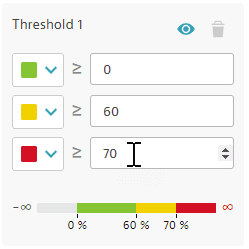
- Adjust threshold colors optional
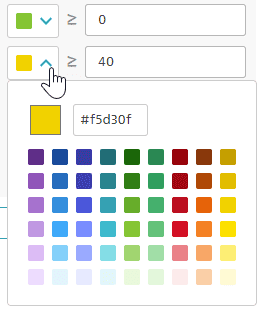
¶ Hide or show threshold colors
To hide or show threshold colors without deleting the threshold settings, in the Thresholds section, select .
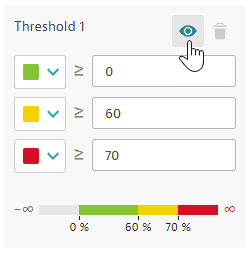
¶ Example thresholds
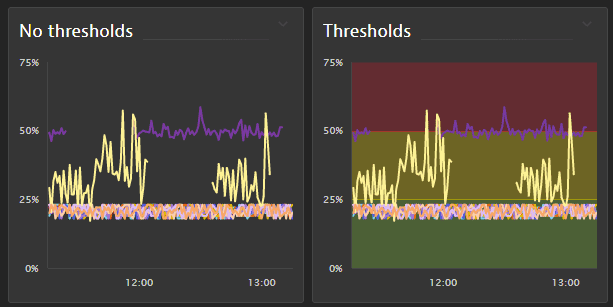
This example shows a Graph visualization of CPU usage % (builtin:host.cpu.usage) before and after adding thresholds. The effect is similar for other visualizations with thresholds.
¶ Graph - no thresholds
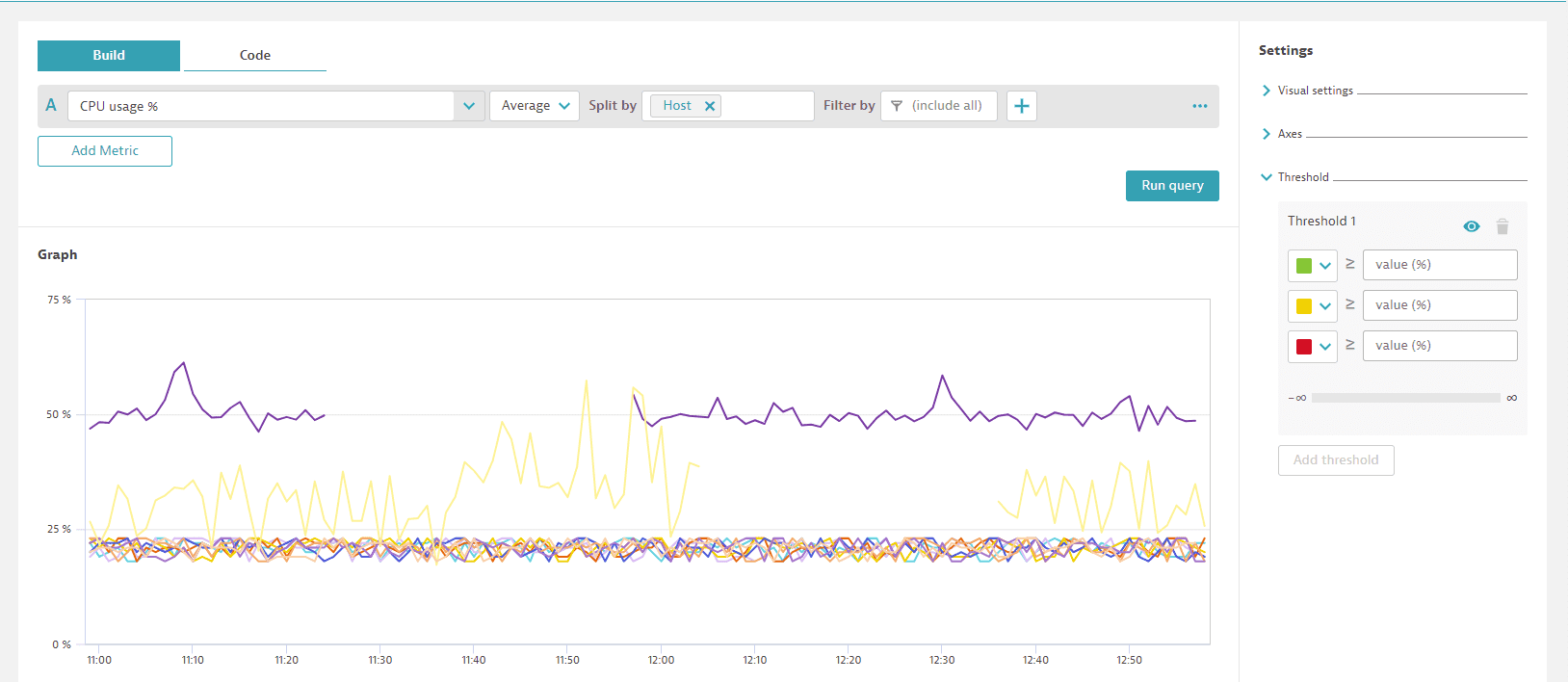
¶ Same graph with thresholds added
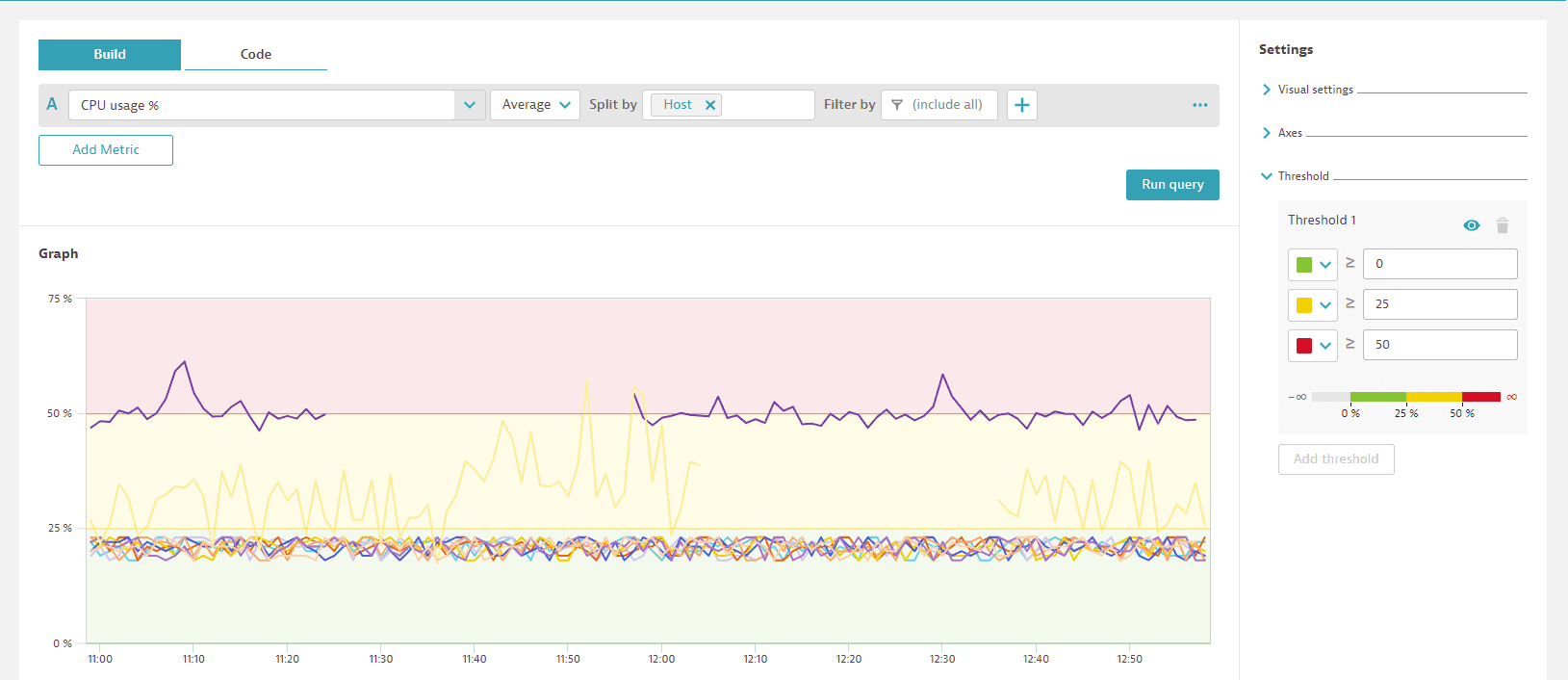
The thresholds also affect how the tiles are displayed on your dashboards.
¶ Graph tile before and after thresholds